- RUN C:\Program Files\Microsoft Office\MS Access Workgroup Administrator.exe
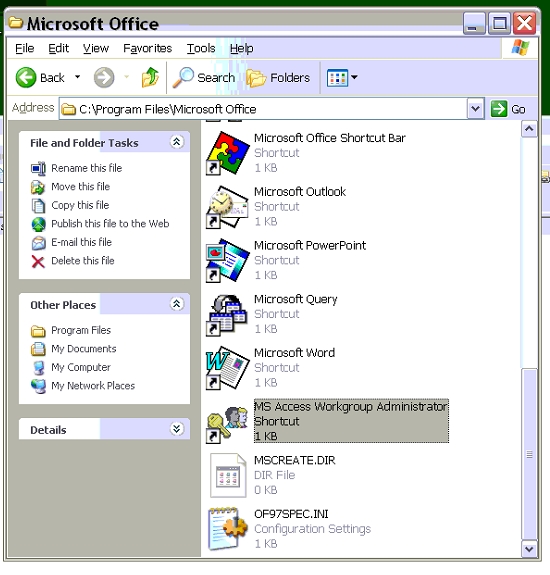
- Click the Center Button [Join]
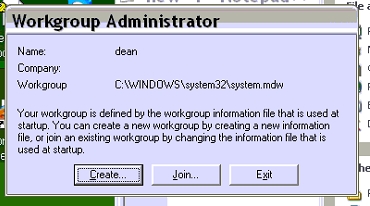
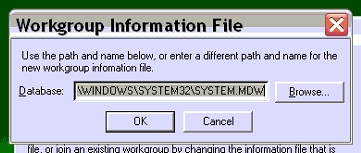
- In the Workgoup Information file that pops up Click the[browse]button.
- The Select Workgoup Information file window at the bottom left is a list box from the list select Add-In Files *.MDA Note customer service would use *.MDW
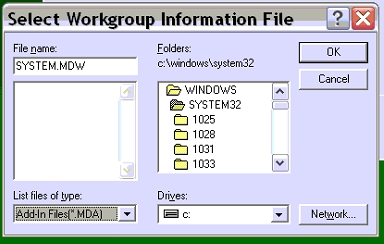
- To the right of the List box is another called Drives: Select S:
- in the Folders view above the drives Select data
- directly to the left is a File view Select the SYSTEM.MDA the file name box above will change to match your selection.
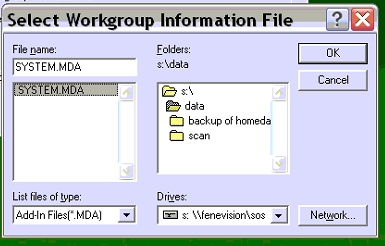
- Click the OK button
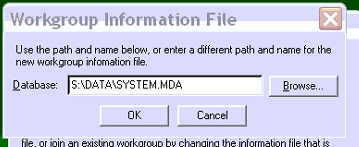
- Now back at the Workgoup Information file window confirm the path is S:\DATA\SYSTEM.MDA and Click the [OK] button.
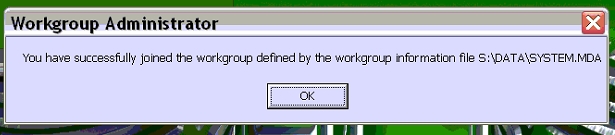
- a pop up window will tell you you have joined the group Click[OK].
- Click the [Exit] button and you should be set.
Now setting up an account log in name and password you need to to do from inside Access. By going to [TOOLs] then [SECURITY] and then [USER AND GROUP ACCOUNTs] Type in the name you want select the group in the Dialog box and click [OK] Log out of access and back in with your new user name. Note: If this workgroup is already established you will need to have someone with admin rights for the group create your account.